Open Athena and Browse Catalog
Now that Athena has a result location, the next step is to open the query interface and confirm that the processed Glue catalog objects are visible.
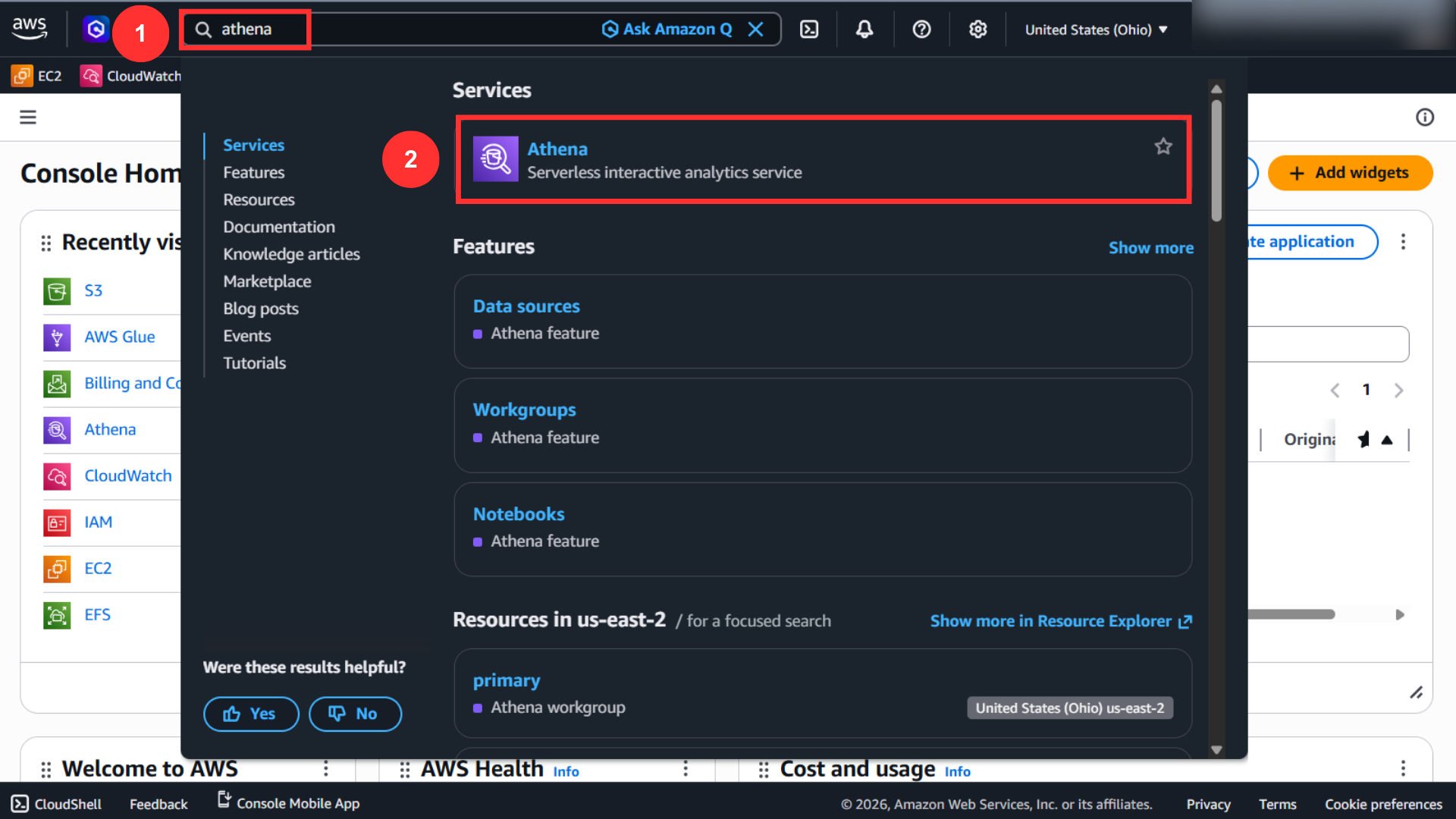
Step 1: Open Amazon Athena
From the AWS Console, search for Athena and open the service.
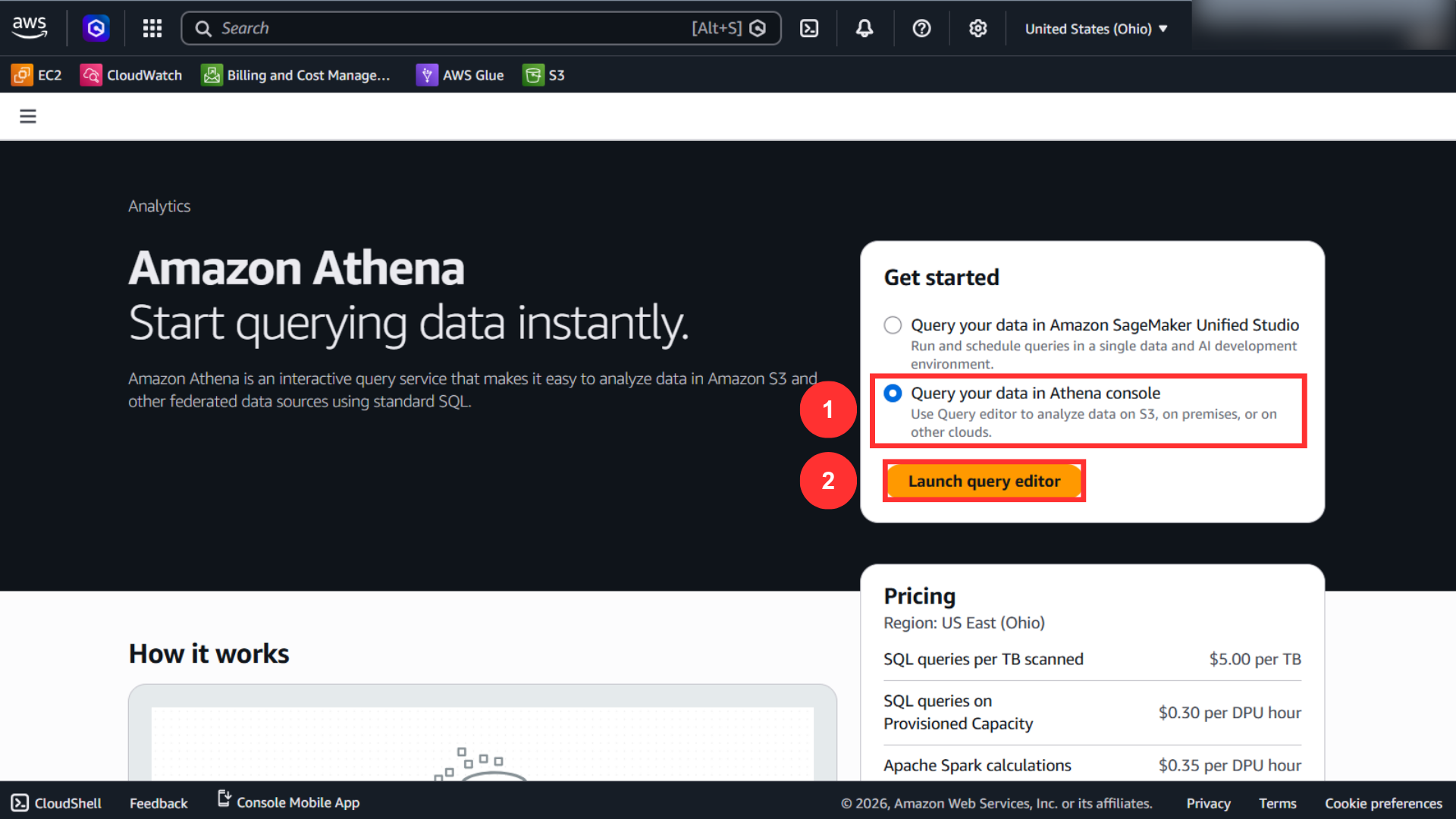
Choose Launch query editor.
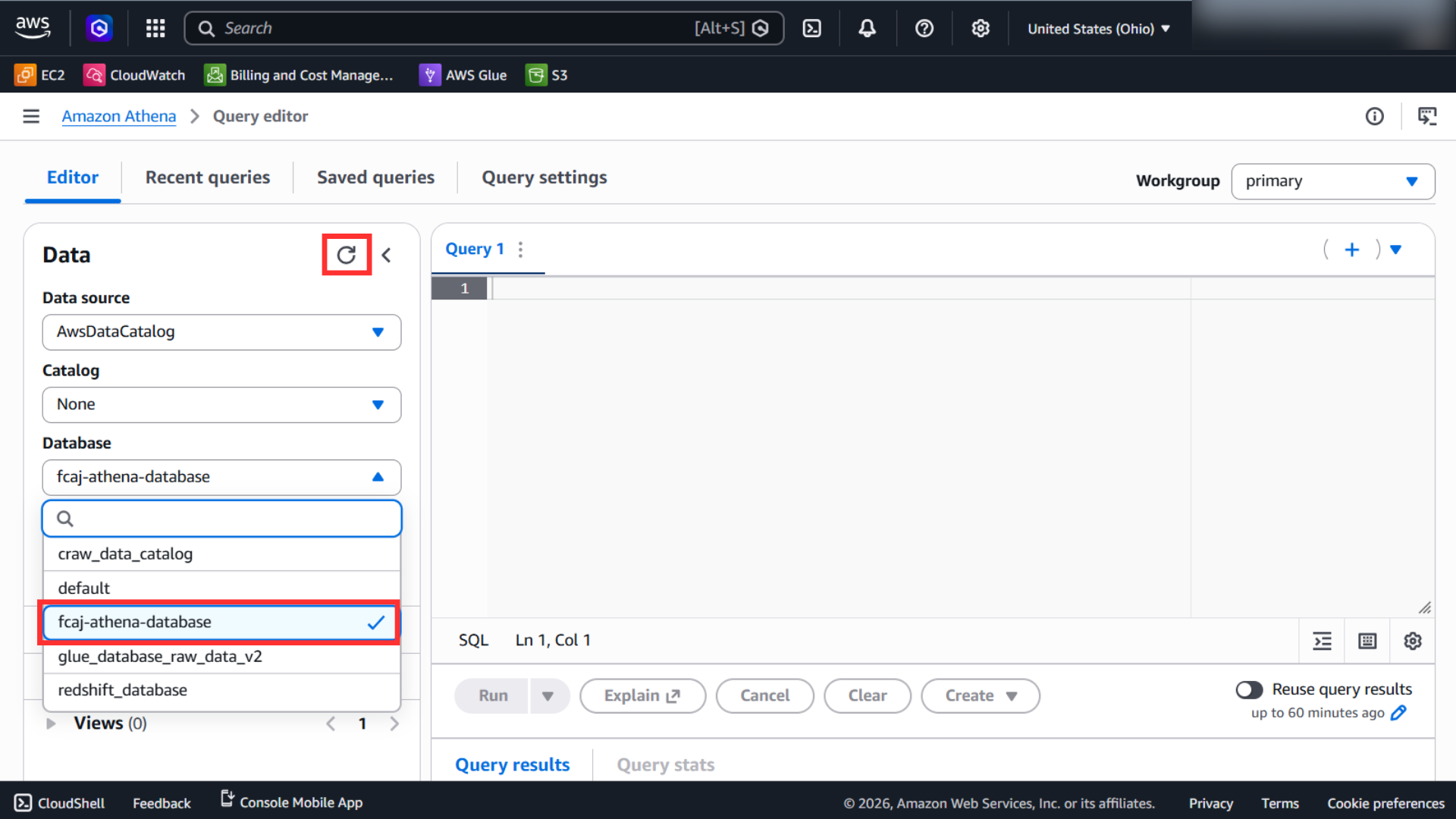
Step 2: Confirm the Glue Database
In the left sidebar:
- Keep Data source as
AwsDataCatalog - Select the workshop database
Step 3: Confirm the Processed Table
After the correct database is selected, the processed table should appear in the table list.
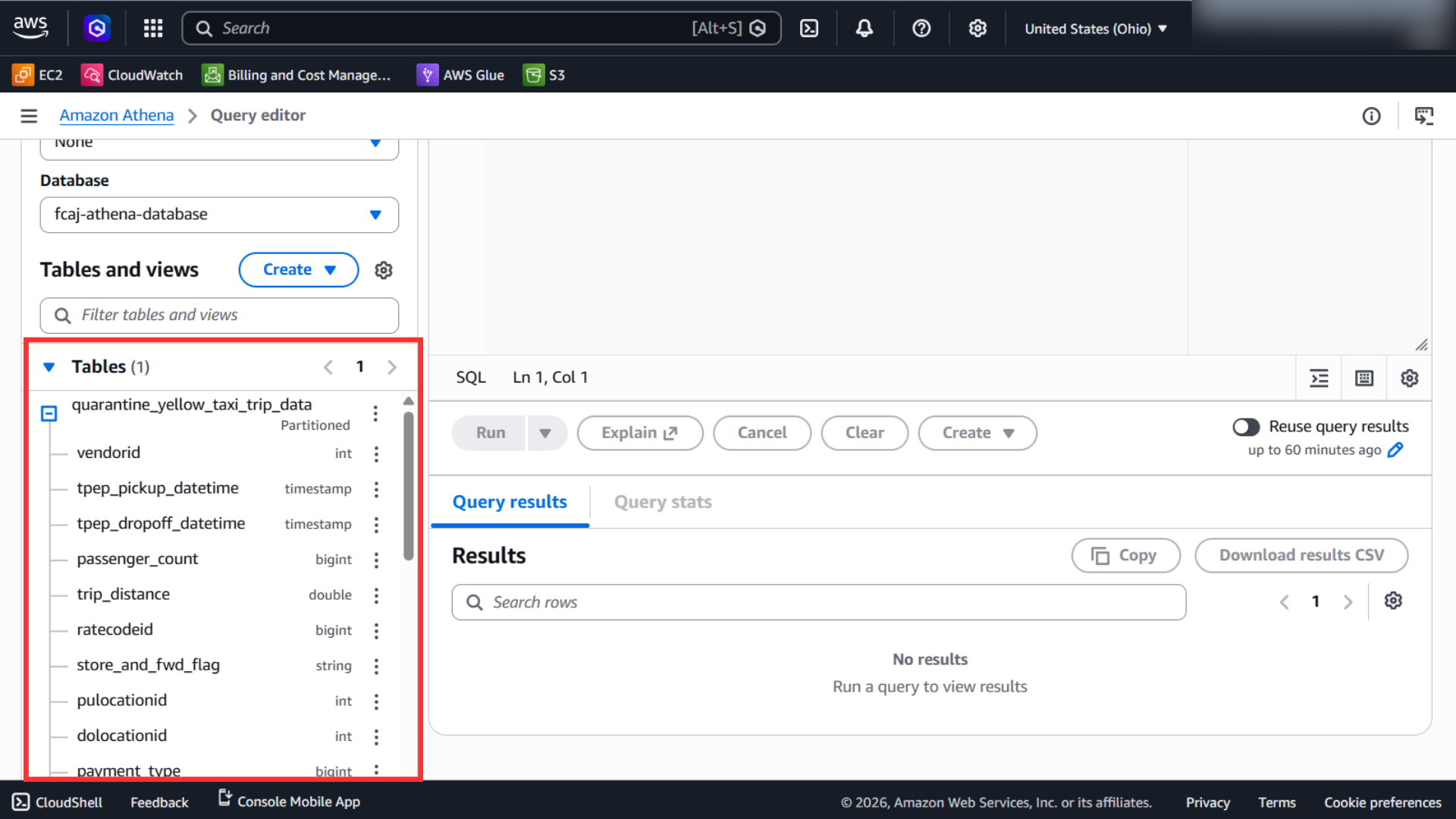
If your database or table does not appear, continue to the recovery page before attempting queries.