AWS Glue Crawler
Overview
In this section, we will configure an AWS Glue Crawler to automatically scan data from Amazon S3, detect the schema, and create metadata tables in the AWS Glue Data Catalog.
After completing this session, you will be able to:
- Create a Glue Database in the Data Catalog
- Create an IAM Role for the Glue Crawler
- Configure an S3 data source for the Crawler
- Configure the output database and table prefix
- Create and run a Glue Crawler
- Verify the generated table in the Glue Data Catalog
Workflow Overview
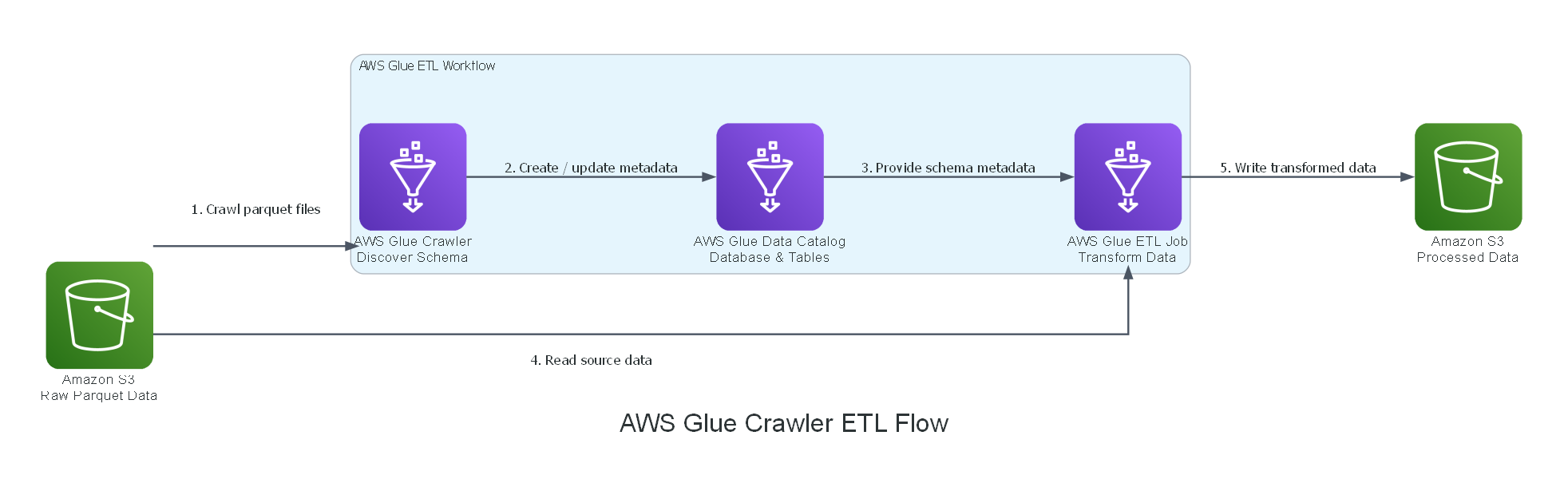
Raw data is stored in Amazon S3 in Parquet format. AWS Glue Crawler scans the data source, identifies the file structure, detects the schema, and creates metadata tables inside the AWS Glue Data Catalog. After the metadata is available, an AWS Glue ETL Job can use that catalog information to read, transform, and write processed data back to Amazon S3.
Important: AWS Glue Crawler does not move or copy your data into the Data Catalog.
The actual data still stays in Amazon S3. The Data Catalog only stores metadata such as table name, schema, column types, partitions, and S3 location.
The simplified workflow is:
Key Concepts
Before creating the crawler, it is important to understand the main components involved in this lab.
Amazon S3
Amazon S3 is used as the data lake storage layer. In this workshop, the raw dataset is stored in S3 as Parquet files.
Example: s3://yellow-taxi-trip-demo-fcaj
Parquet is commonly used in analytics workloads because it is columnar, compressed, and efficient for large-scale data processing.
AWS Glue Crawler
AWS Glue Crawler automatically scans data stored in S3 and detects schema information.
The crawler can identify:
- File format
- Column names
- Data types
- Partition structure
- S3 location
- Table metadata
The crawler then writes this metadata into the AWS Glue Data Catalog.
AWS Glue Data Catalog
AWS Glue Data Catalog is a centralized metadata repository. It stores databases and tables that describe your data.
For example, after the crawler scans S3, it may create a table that points to your Parquet files.
This table can later be used by:
- AWS Glue ETL Jobs
- Amazon Athena
- Amazon EMR
- Amazon Redshift Spectrum
- Other analytics services
- AWS Glue ETL Job
AWS Glue ETL Job is used to transform data. It can read data from S3 by using the table definition from Glue Data Catalog.
Configuration
In this workshop, we will use the following sample configuration.
| Resource | Value |
|---|---|
| Source S3 Bucket | s3://yellow-taxi-trip-demo-fcaj |
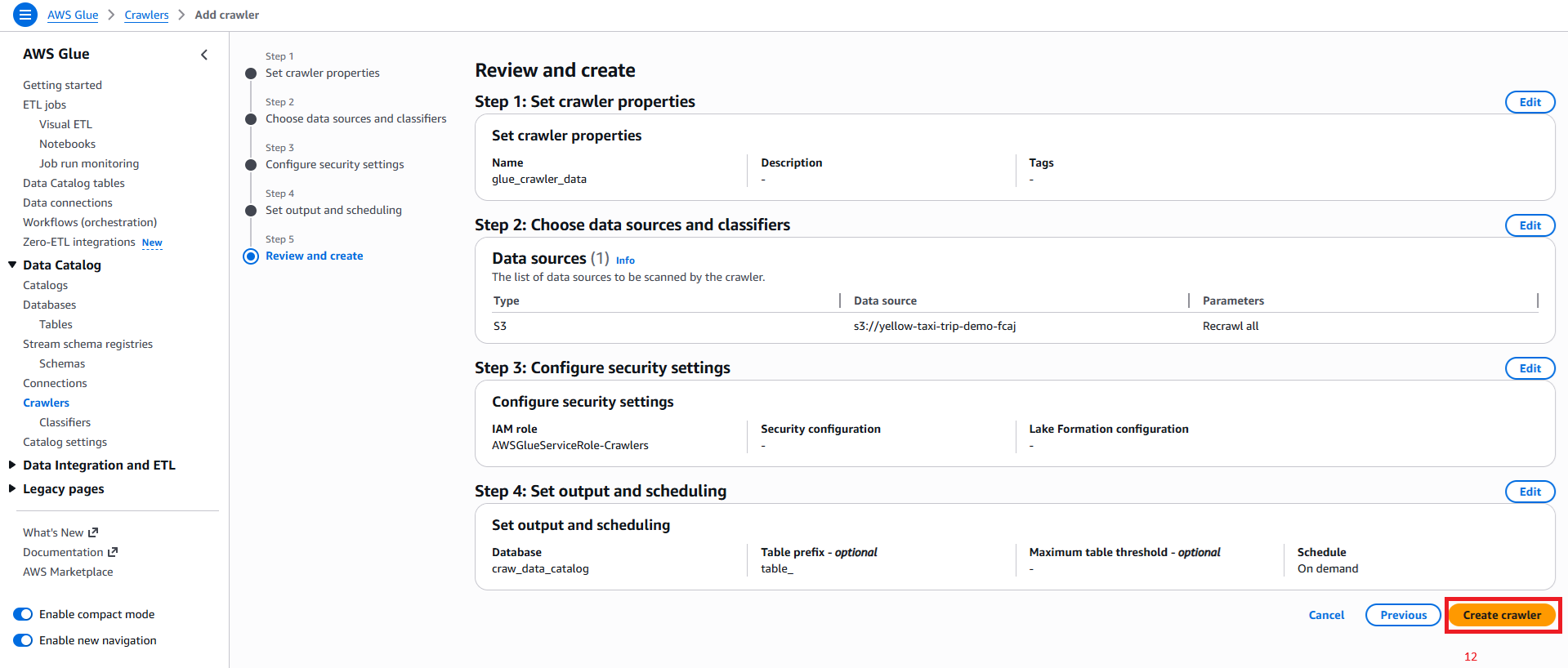
| Glue Crawler Name | glue_crawler_data |
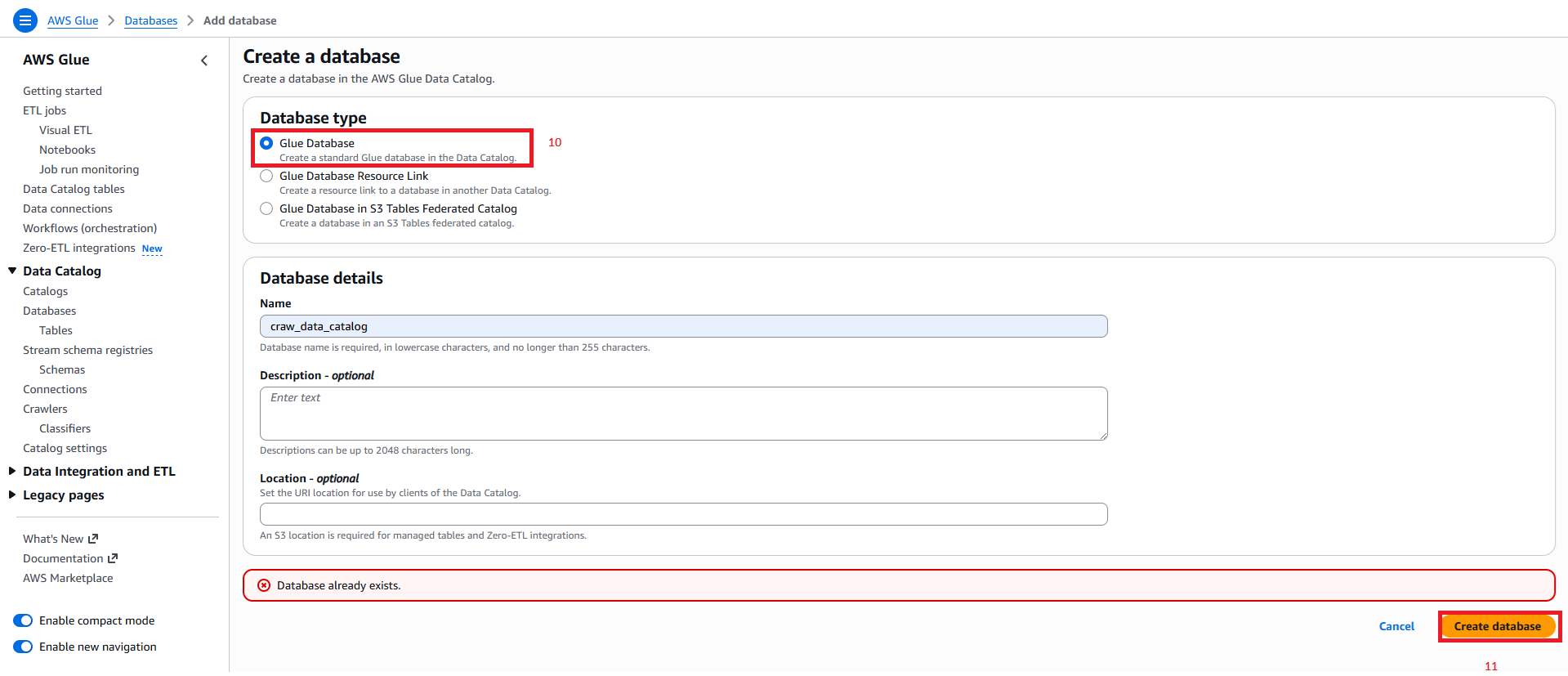
| Glue Database Name | craw_data_catalog |
| IAM Role | AWSGlueServiceRole-Crawlers |
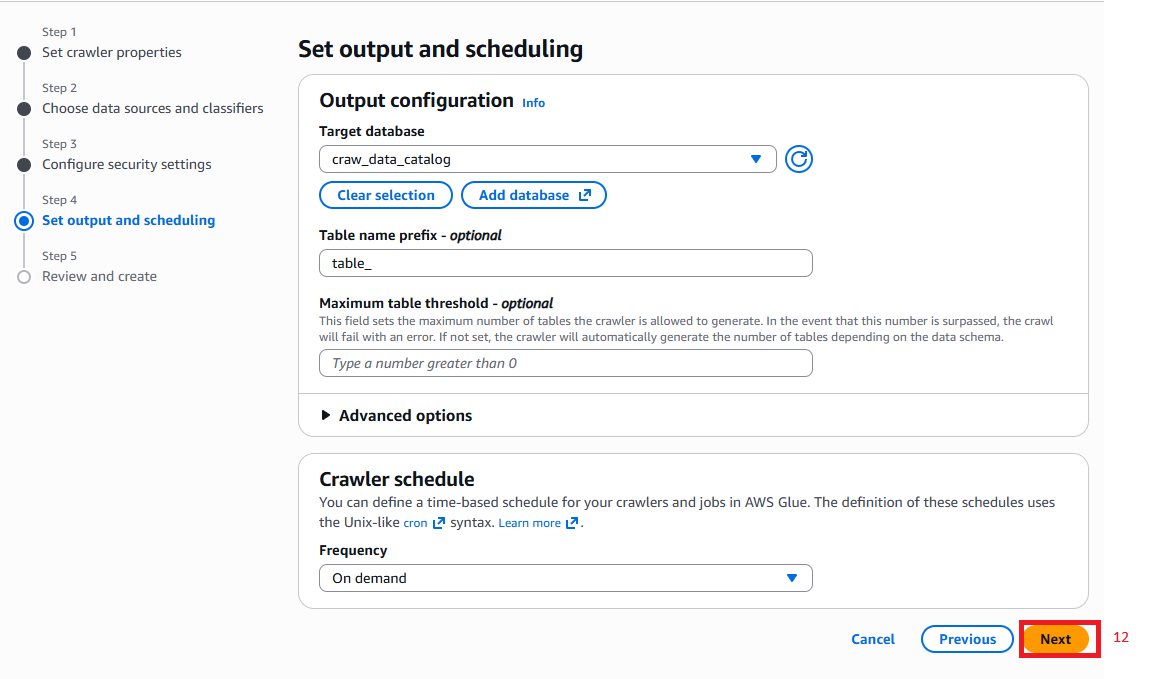
| Table Prefix | table_ |
| Crawler Schedule | On demand |
You can change these names based on your own AWS environment.
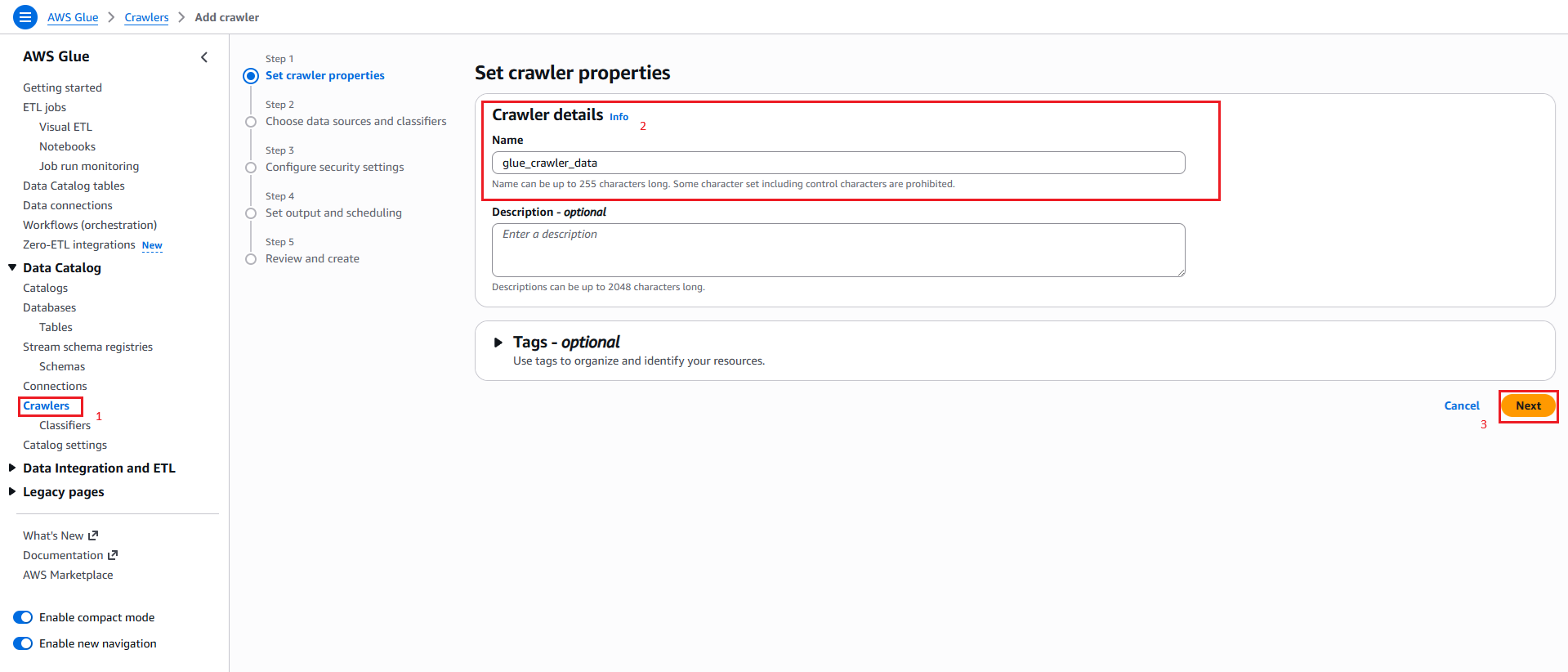
Step 1: Set crawler properties
- Go to the AWS Glue Console
- In the left navigation pane, choose Crawlers
- Choose Add crawler
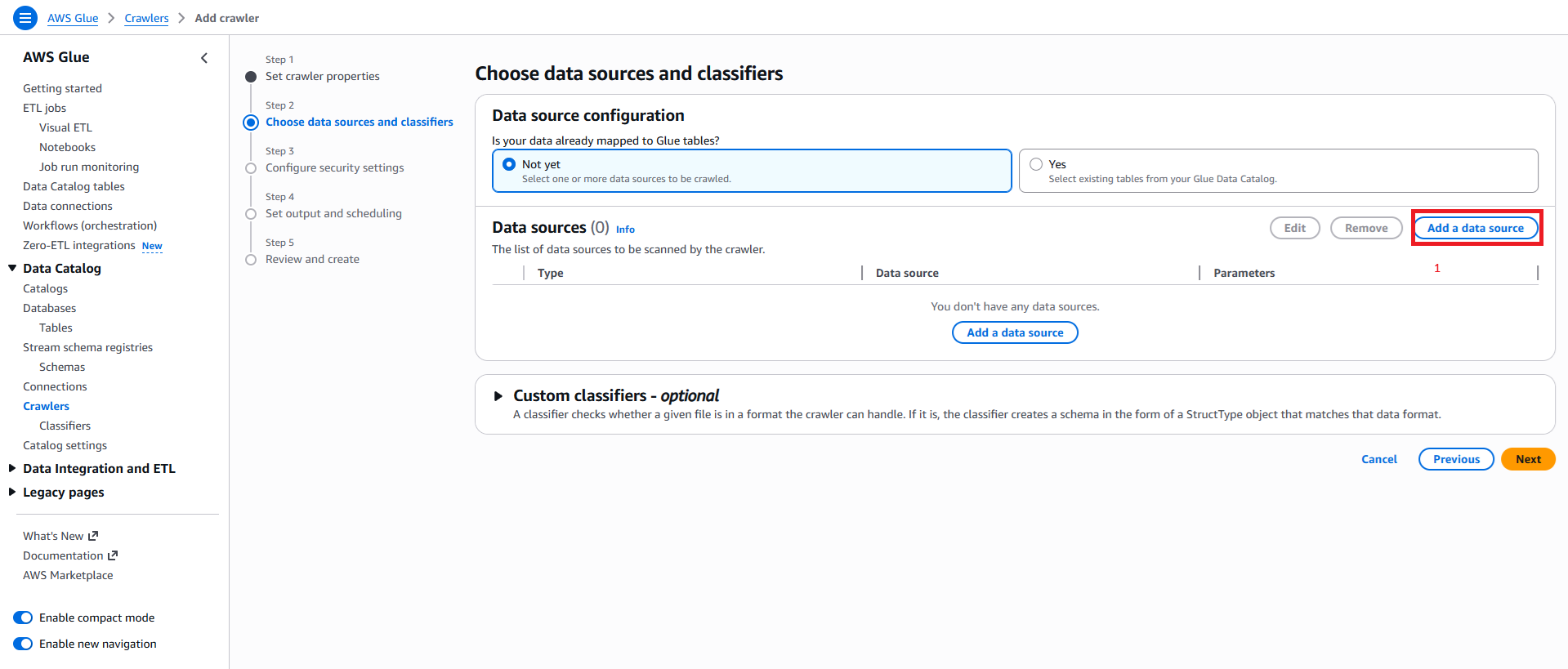
Step 2: Choose Data Source and Classifiers
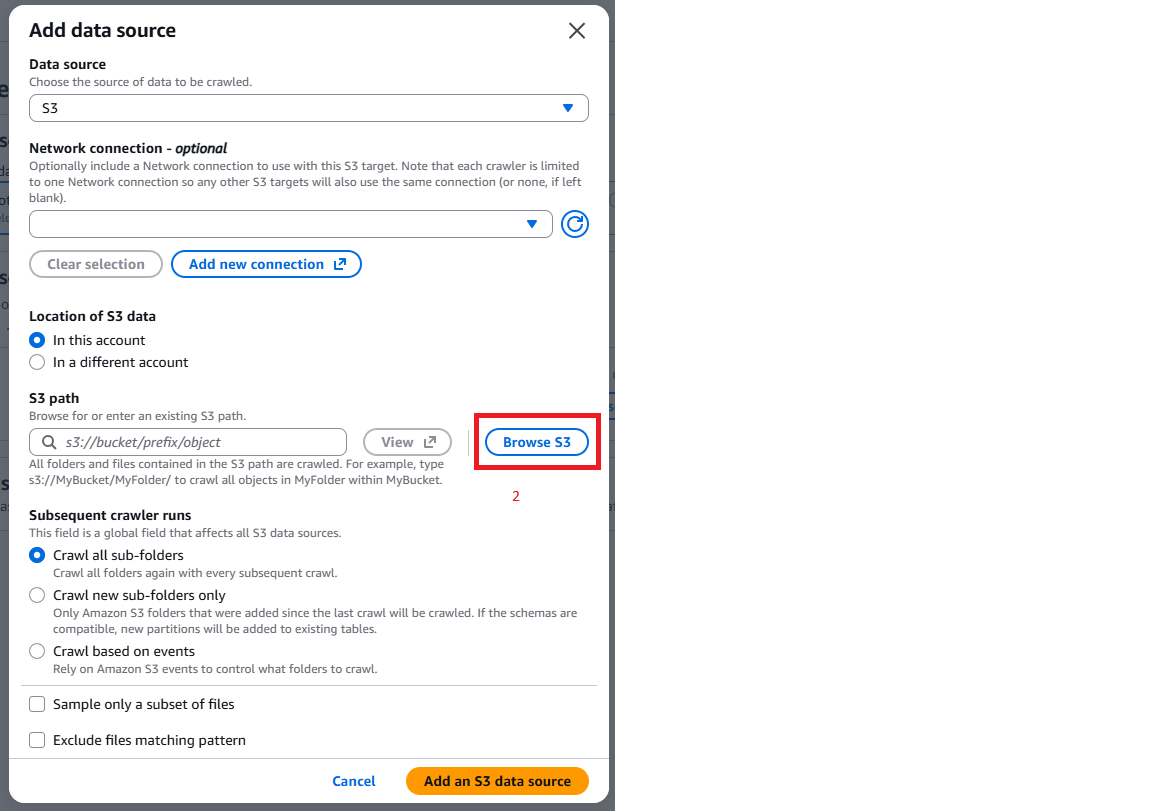
Click add a data source button
Click Browse S3
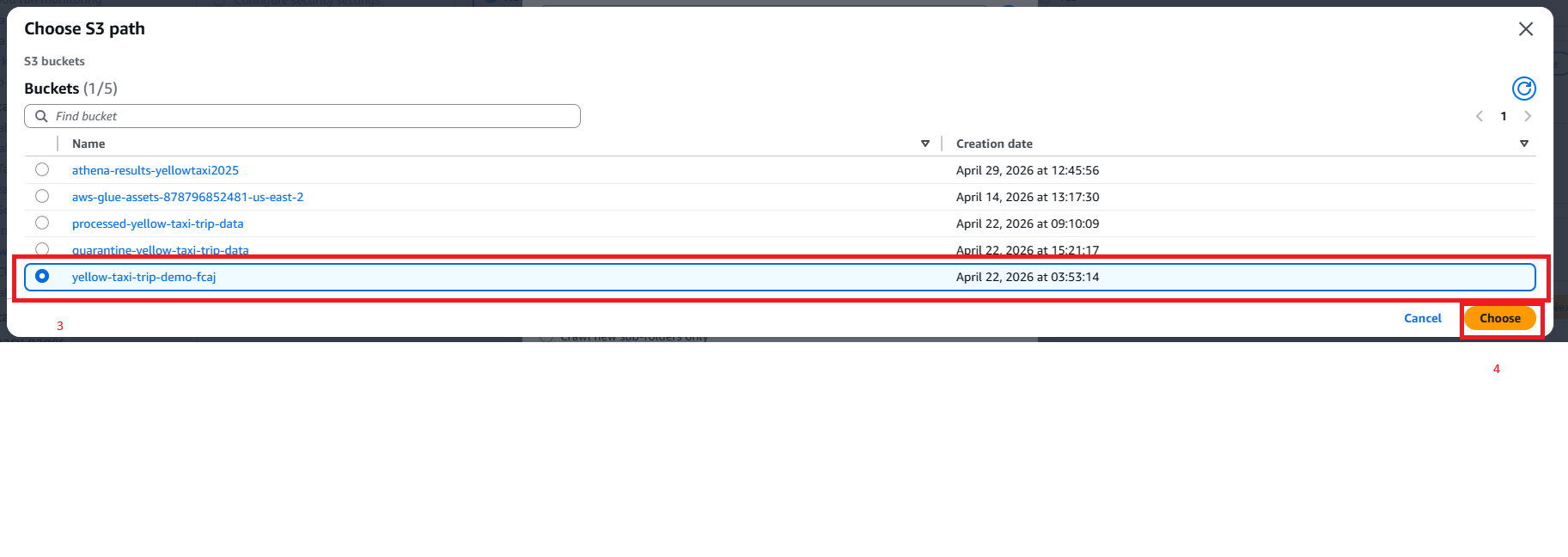
Select the S3 Bucket an click button Choose
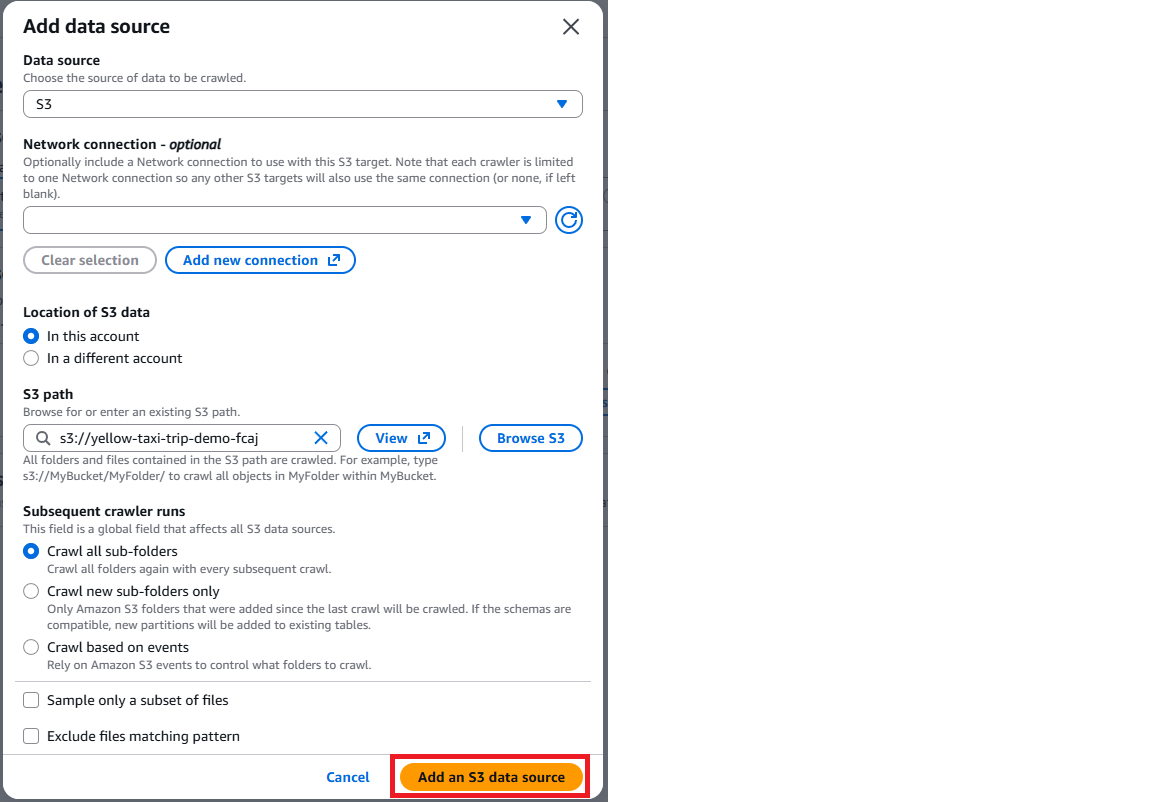
Click button Add S3 Data Source and click next
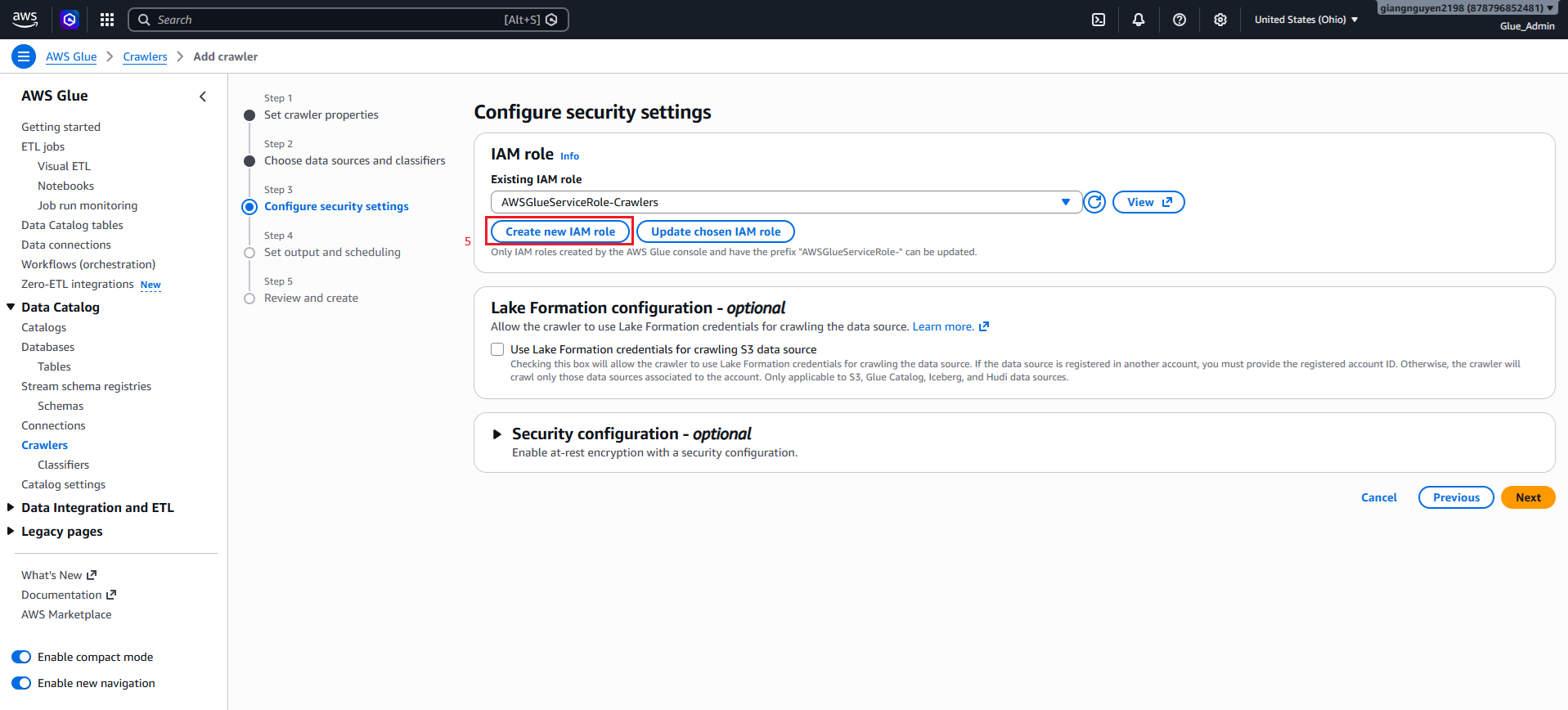
Step 3: Configure security settings
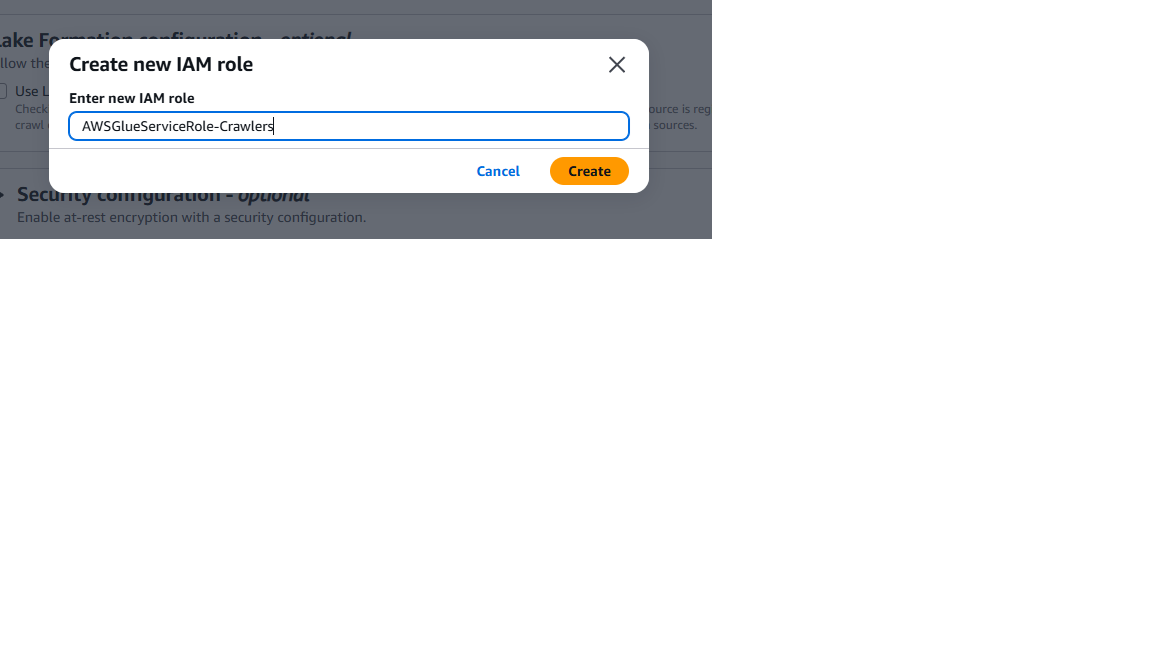
- Click button Create new IAM Role and set name
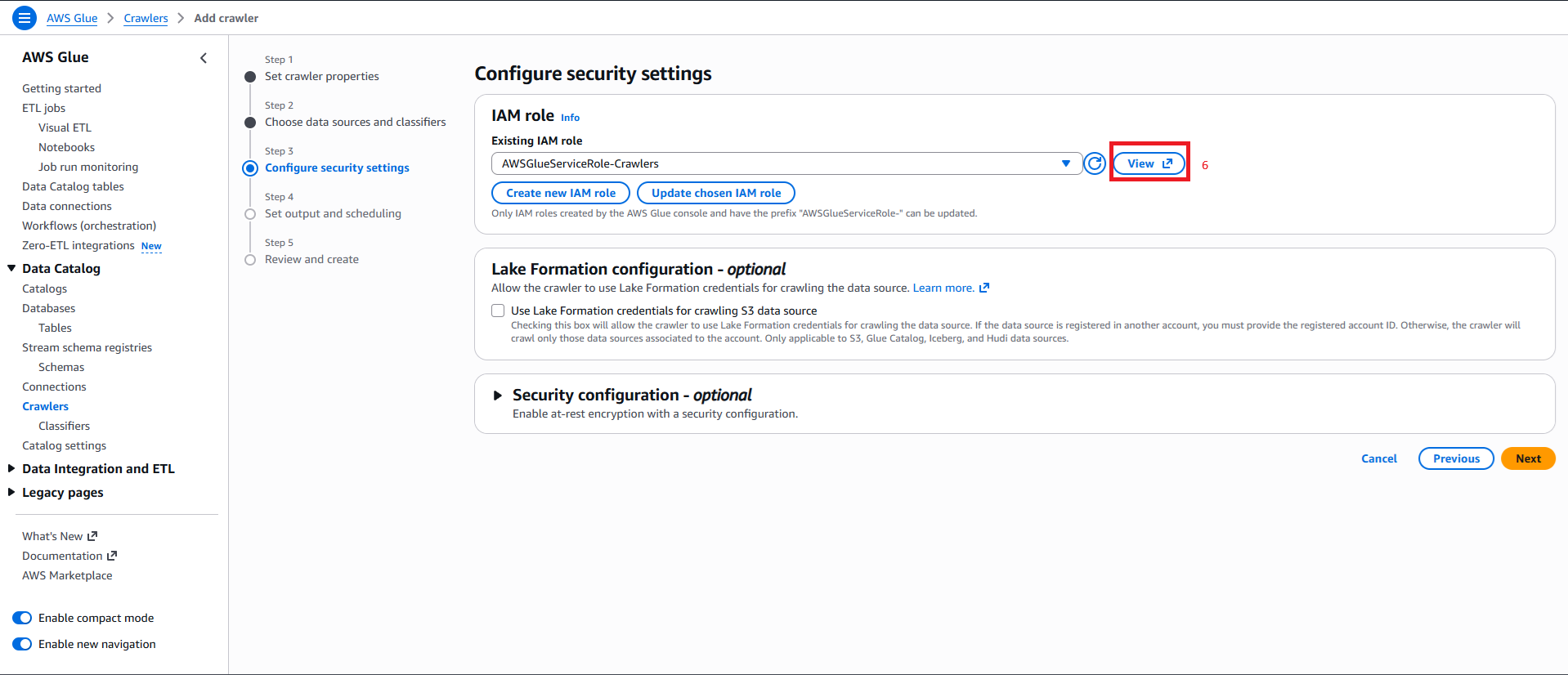
Click button View to configure role access to Read and Write data in S3
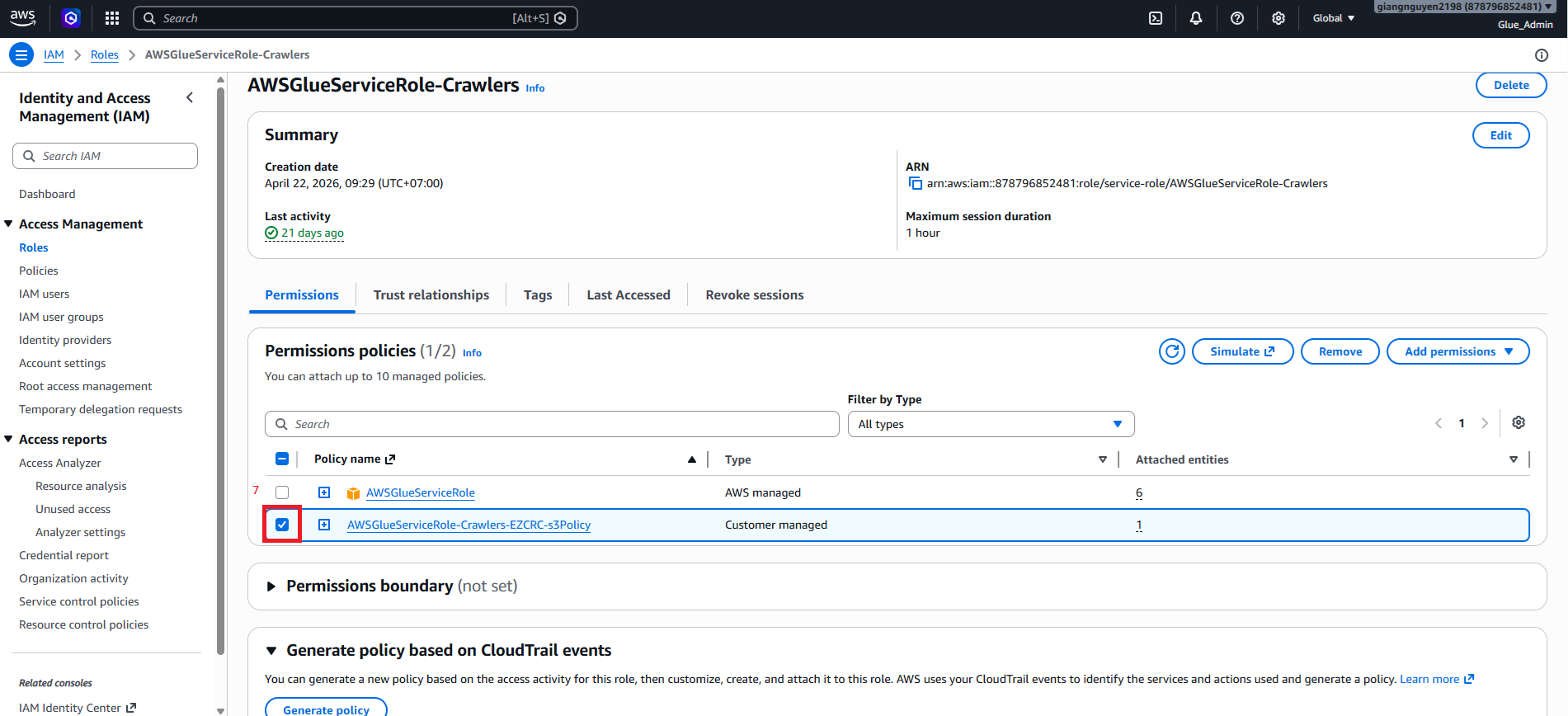
Click Permission policy name to edit
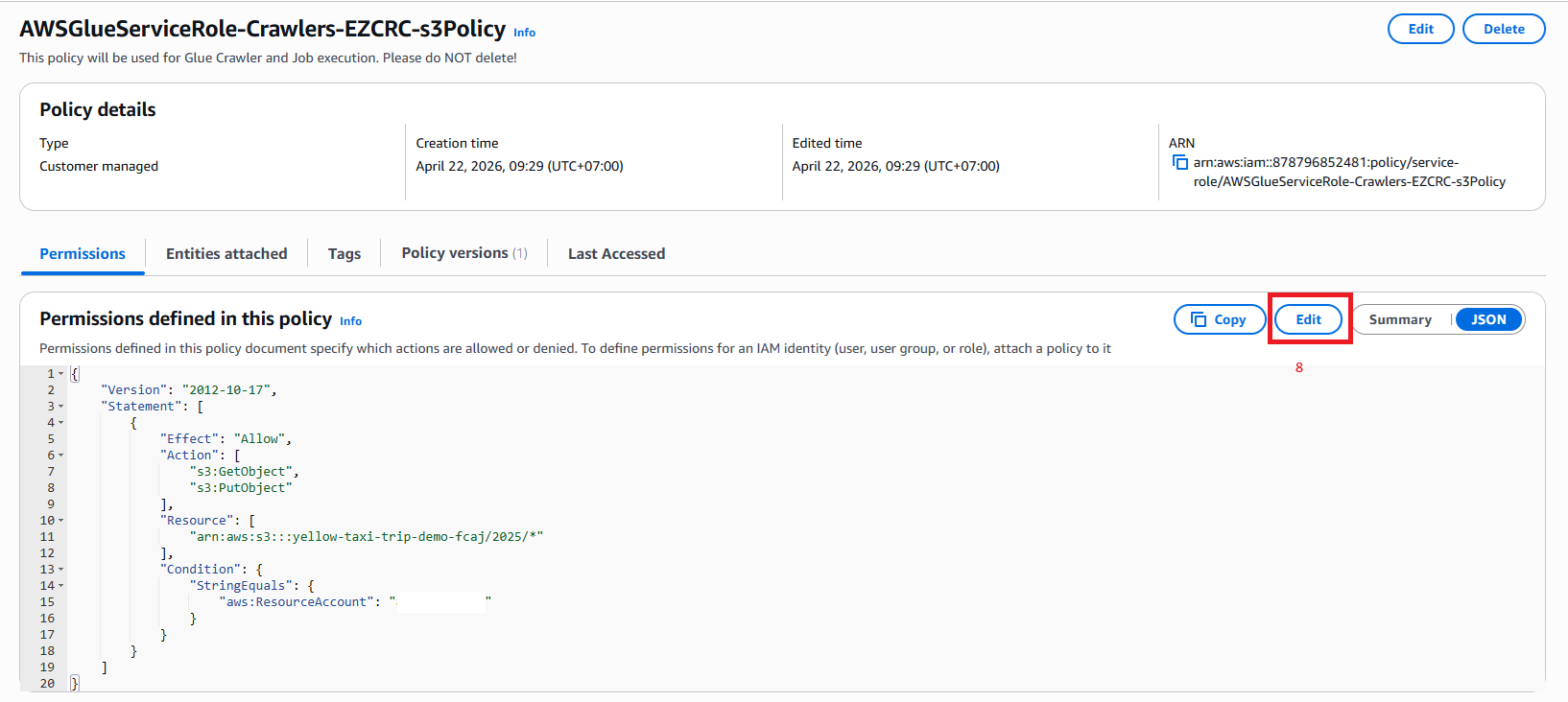
Click Edit permission to edit:
- In the Action section, you should set S3:Get Object and Put Object to get permission to retrieve data from S3.
- In the Resource section, since my parquet file contains many subfiles, I added /* so that it can read the files inside as well.
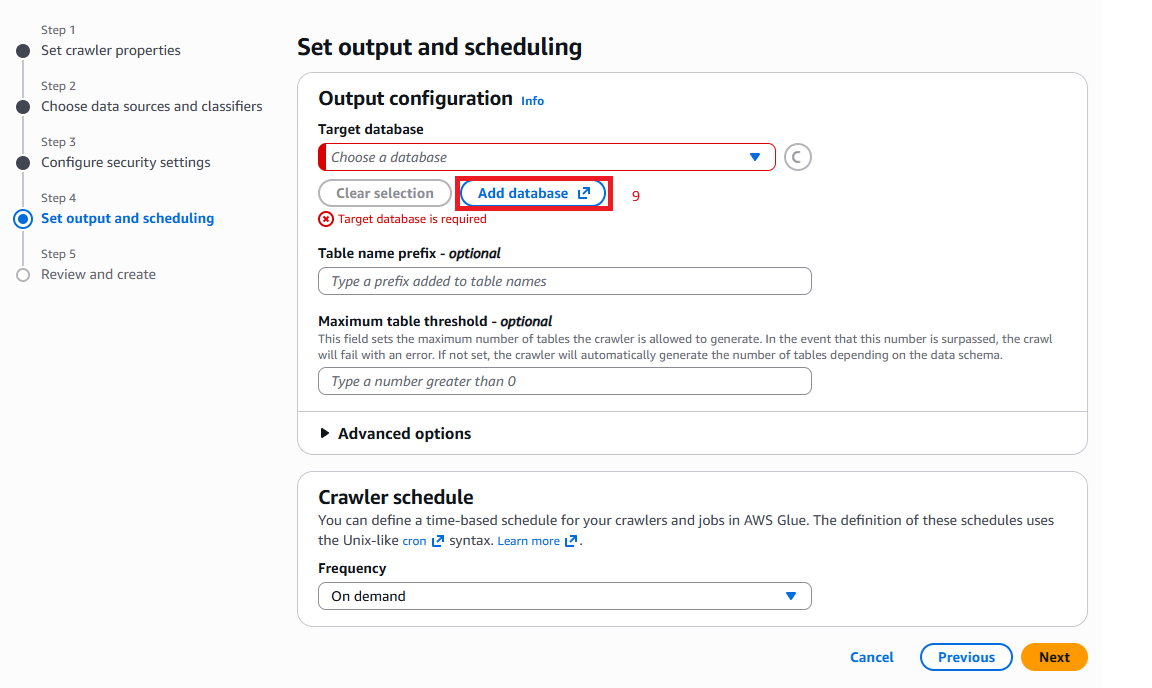
Step 4: Set output and scheduling
Click button Add Database
Create a standard Glue database in the Data Catalog.
S3 stores the actual data, the Glue Data Catalog stores the “map/schema” of the data, and Glue ETL uses that map to process the data.
- Click Next to review Crawlers Setup
Review and create
- Review all the settings and click Create crawler